Kids Mode: Let Your Child Navigate Their Routines Independently
One of the biggest goals of visual supports is helping children do things on their own. Today, we’re introducing Kids Mode — a new feature that puts the app directly in your child’s hands with a simplified, distraction-free interface designed just for them.
What is Kids Mode?
Kids Mode is a child-friendly view of MyVisualRoutine. When enabled, the app switches to a simplified interface with:
- A friendly greeting from the owl mascot (“Good Morning!”, “Good Evening!”) that changes throughout the day
- Large, colorful buttons for creating Choice Boards and First/Then boards
- Easy browsing of activities and symbols
- No settings or configuration — just the tools your child needs
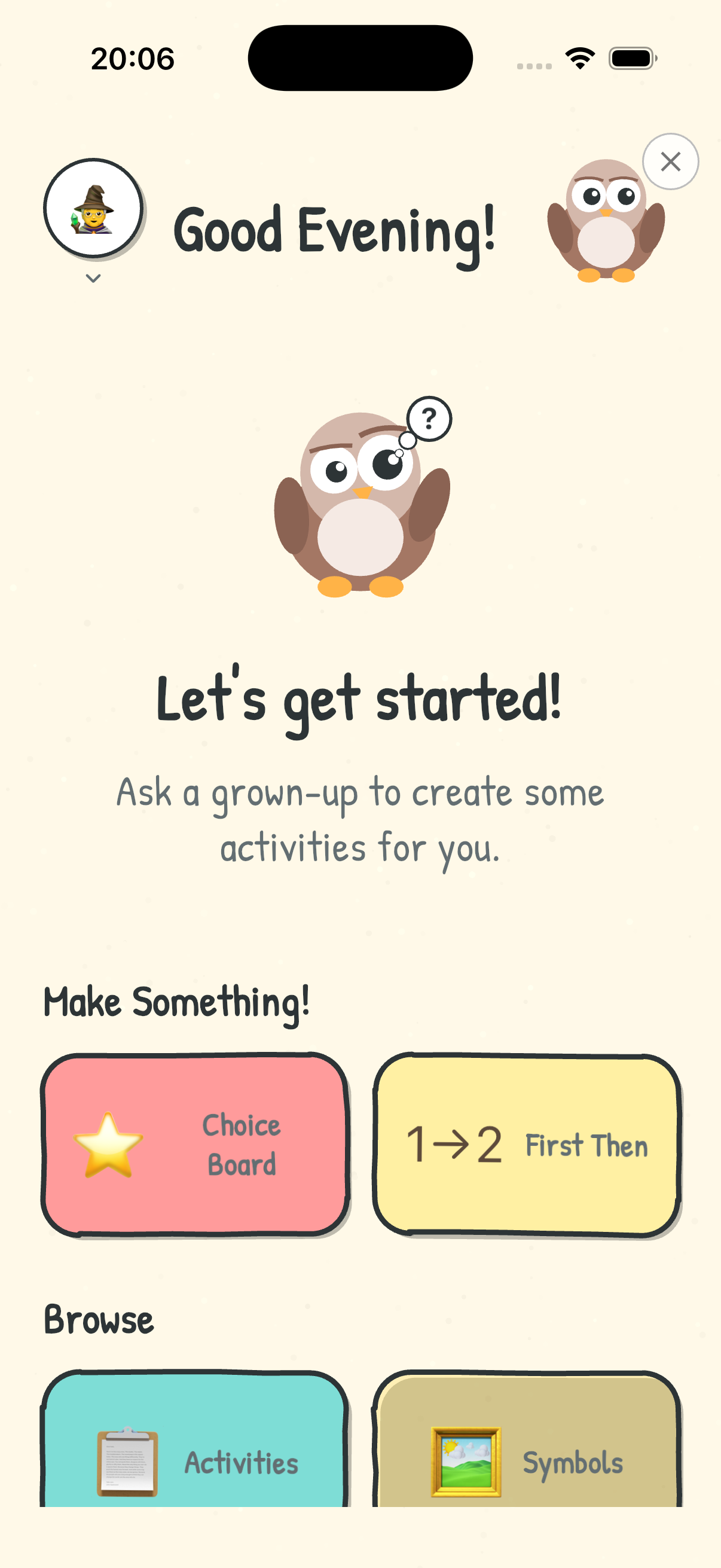
The idea is simple: parents and caregivers set up the activities, routines, and boards in the regular app view. Then hand the device to your child and let Kids Mode guide them through everything independently.
Why independence matters
For children with autism, ADHD, or other developmental differences, independence isn’t just a nice-to-have — it’s a core developmental goal. Research consistently shows that:
- Self-initiated tasks build confidence — When children start activities on their own, they develop a sense of capability
- Reduced prompting decreases frustration — Both for the child and the caregiver
- Independent navigation builds executive function skills — Making choices and following sequences strengthens planning abilities
- Autonomy reduces challenging behaviors — Many behaviors stem from a lack of control over one’s environment
Kids Mode is designed to support all of these goals by giving children an interface they can actually use without constant adult guidance.
How it works
For parents and caregivers
- Create activities and routines in the regular app view as you normally would
- Enable Kids Mode from the settings
- Hand the device to your child — they’ll see the simplified Kids Mode interface
Everything you’ve set up — your visual schedules, choice boards, first/then boards, and activities — is available to your child through the simplified view. You stay in control of the content while your child gets the independence of navigating it themselves.
For children
When your child opens the app in Kids Mode, they see:
- A friendly owl greeting that changes based on the time of day
- “Make Something!” — Large, tappable buttons to create a Choice Board or First/Then board from the activities you’ve set up
- “Browse” — Quick access to explore all available activities and symbols
- A prompt to ask a grown-up if they need new activities added
The interface uses large touch targets, clear labels, and calming colors — everything we’ve learned about designing for children who need visual supports.
Who is Kids Mode for?
Kids Mode works great for:
- Children who can navigate a tablet or phone but get overwhelmed by too many options
- Families sharing a device — Parents use the full app, children use Kids Mode
- Therapy sessions where the therapist wants the child to initiate activities
- Classrooms where multiple children use the same device
- Any child building independence with visual supports
Tips for introducing Kids Mode
Start with familiar content
Before switching to Kids Mode, make sure your child’s favorite activities and routines are already set up. Familiarity breeds confidence.
Show them once, then step back
Walk through the interface once with your child: “Look, here’s your owl friend! You can tap here to make a choice board.” Then let them explore on their own. Resist the urge to over-explain.
Celebrate independent use
When your child navigates to an activity or starts a routine on their own, acknowledge it. “You found your morning routine all by yourself!” This reinforcement builds the habit.
Let them ask for help
Kids Mode includes the message “Ask a grown-up to create some activities for you.” This teaches children to advocate for what they need — another important skill.
Try Kids Mode today
Kids Mode is available now in MyVisualRoutine. Update to the latest version, enable it in settings, and watch your child take the lead.
Download MyVisualRoutine or update your existing app to get started.
Related Resources:
- How to Create a Visual Schedule
- First/Then Board Guide
- Choice Boards for Communication
- Visual Schedules Feature Guide
This article was written by a parent and app developer, not a clinical professional. It is for informational purposes only and does not constitute medical, therapeutic, or educational advice. The strategies described here are based on published research and widely used frameworks, but every individual is different. Please consult a qualified professional — such as a BCBA, occupational therapist, speech-language pathologist, or special education teacher — before making changes to your child’s support plan.

Try MyVisualRoutine Free
Create visual schedules, choice boards, and First/Then boards in minutes. 50+ preloaded activities included.